Guide
Opening the workspace
Any of the three:
- click the house icon in the left ribbon;
- run Open workspace from the command palette;
- let it open automatically on startup (on by default) — you can turn this off, or switch it from opening a new tab to replacing the current one.
Two modes
| Mode | Purpose |
|---|---|
| Workspace mode | Everyday use: read components, drill into stats, jump to tasks. Every interaction is read-only — nothing in your notes changes. |
| Edit mode | Manage the layout: add / remove / move components, tweak widths and parameters. Toggle with the Toggle edit mode command. |
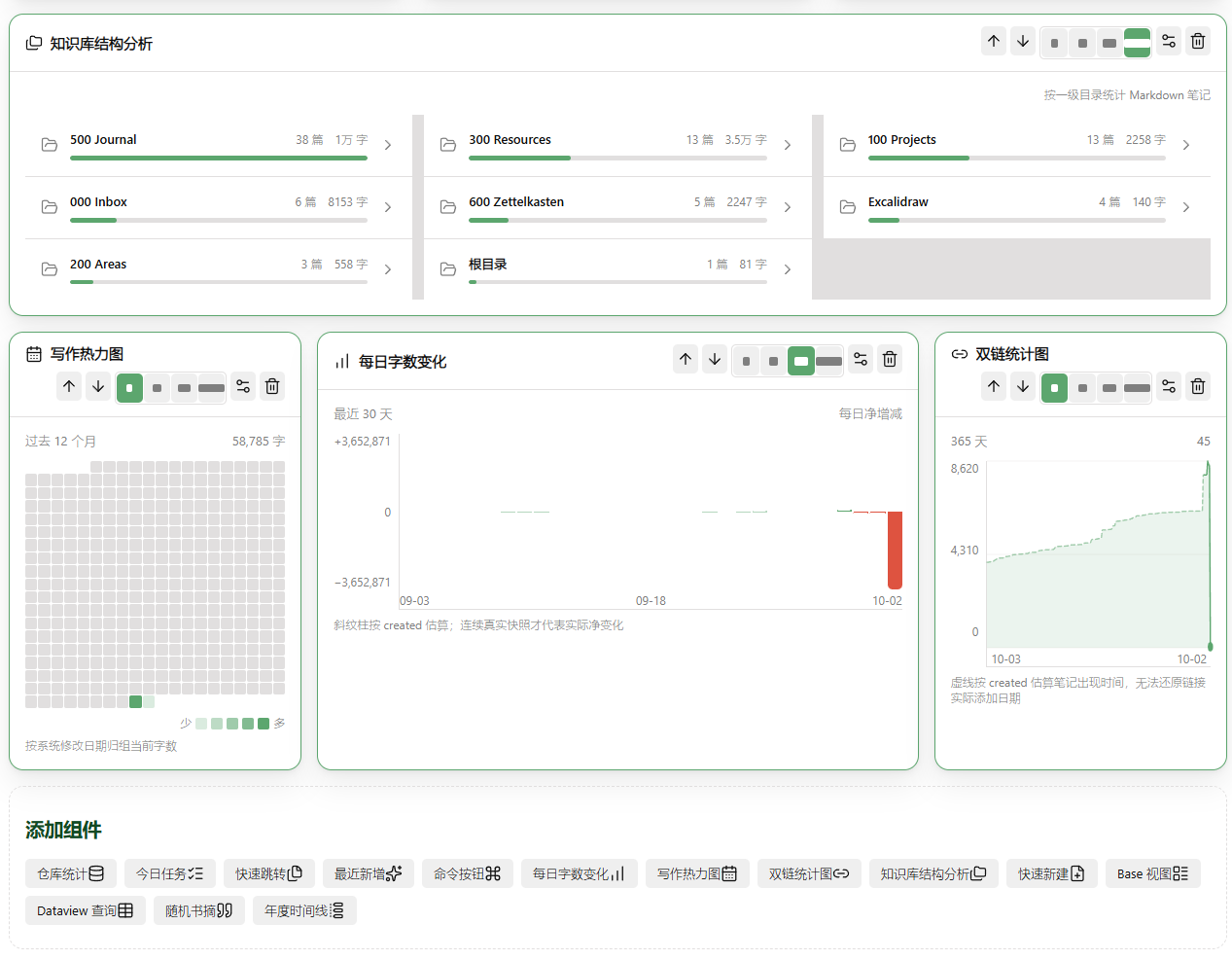
In edit mode each tile shows its action buttons (move up, move down, width, parameters, delete, …). Changes are saved instantly to the plugin’s data file — there is no save button.
Editing
- Add a component: in edit mode click Add and pick from the list (see the component reference);
- Reorder: use the up / down buttons or simply drag a tile;
- Resize: four tiers — 25%, 33%, 50%, 100%; the grid wraps automatically;
- Title & parameters: edit them in the parameters panel; see the component reference for what each component offers;
- Delete: removing a tile is instant; re-adding it later means re-entering its parameters.
Today’s tasks
The Today’s Tasks component scans daily notes under the journal folder (configured in settings) whose filenames parse as dates with your date format (e.g. 2026-10-01.md). Tasks are grouped into three buckets:
- Today: tasks whose effective date is today — the effective date is the task’s
📅 / ⏳ / 🛫marker if present, otherwise the note’s date; - Overdue: unfinished tasks with an effective date before today;
- Recently completed: tasks with a
✅completion date inside the recent days window.
Tasks use standard Markdown checkboxes and are compatible with the Tasks plugin’s emoji markers (📅 due, ⏳ scheduled, 🛫 start, ✅ done, ➕ created, plus 🔺⏫-style priorities):
- [ ] Hand in the quarterly report 📅 2026-10-01
- [x] Pay the rent ✅ 2026-09-28
The component is read-only by design: checking tasks off is the job of Obsidian itself or dedicated plugins like Tasks — the dashboard only gives you the overview and one-click jumps. Clicking a task opens the note with the cursor on that line.
Vault stats & drill-down
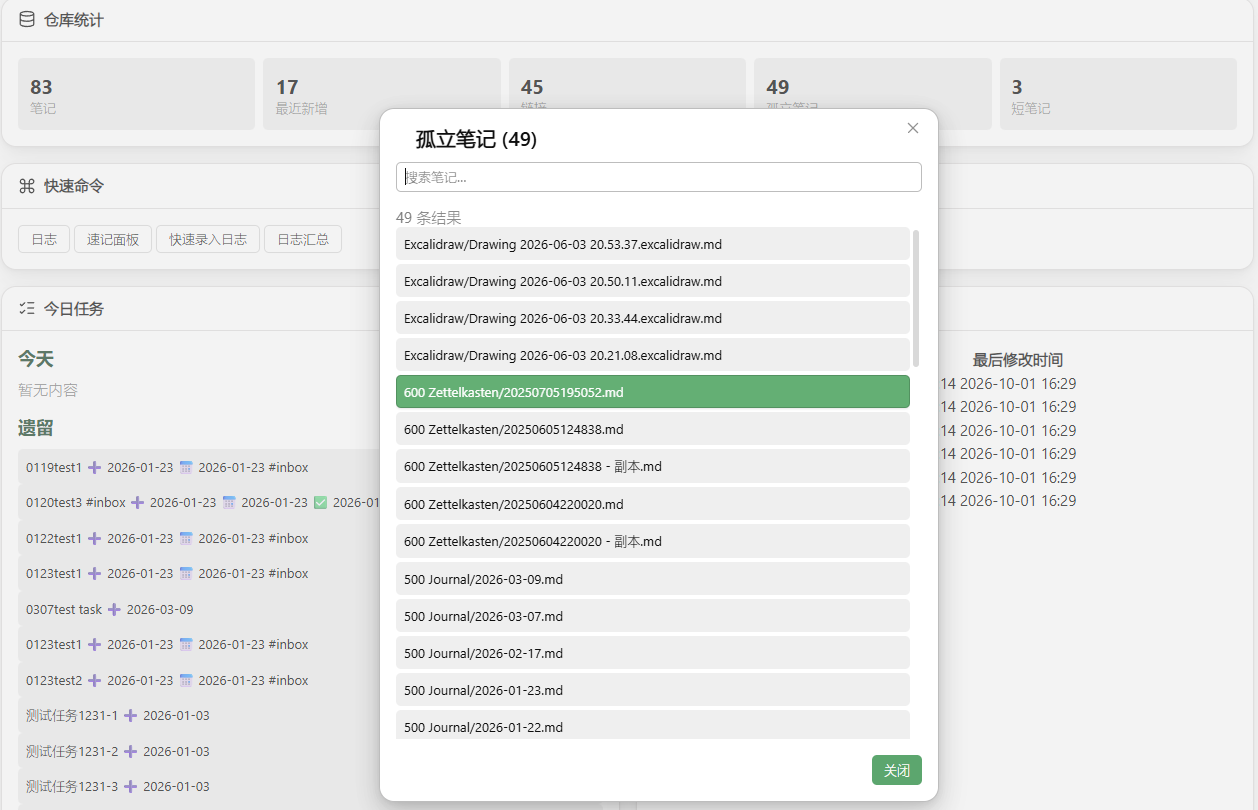
The Vault Stats component shows 9 metrics by default (total notes, word count, attachments, links, empty notes, short notes, orphans, and more — pick your favorites in its parameters). Click any number to see the matching notes with keyword search; the detail list is capped at 500 entries for performance.
History & estimation
The trend and heatmap components rely on snapshots the plugin records, starting from the moment you enable it.
- Estimated history: the segment before installation is back-calculated from file creation times and rendered in a dashed / hatched style to tell it apart from real snapshots; you can hide it via the Show estimated history setting;
- Excluded folders: changing the exclusion list rebuilds history from scratch — the before/after must not mix scopes, or trends would show fake jumps;
- New machine / reinstall: snapshots live only in the plugin’s
data.jsonand do not sync with your notes. Back them up yourself if you need them (see the FAQ).