Components
The workspace is assembled from component tiles. Below are all 14 built-in components plus the custom-script component, grouped by purpose; parameters are filled in through the parameters panel in edit mode.
Overview
| Component | Needs | In one line |
|---|---|---|
| Vault stats | — | 11 vault metrics, click to drill down |
| Today’s tasks | — | Today / overdue / recently completed from your journal folder |
| Recently updated | — | Your most recently modified notes, filterable |
| Command buttons | — | Turn any Obsidian command into a button |
| Quick create | Templater | Create a note from a template in one click |
| Dataview query | Dataview | Run a Dataview query inside the dashboard |
| Recently created | — | Notes created in the last N days |
| Base view | Bases (Obsidian 1.9+) | Embed a .base view |
| Random quote | — | A random quote from your excerpts, with copy |
| Year timeline | — | A full-year SVG axis with event flags |
| Daily word change | — | Net word gain/loss per day, last 30 days |
| Writing heatmap | — | A GitHub-style activity heatmap |
| Link stats chart | — | Trend line of internal links |
| Structure analysis | — | Note distribution across top-level folders |
| Custom script | opt-in | Render anything with a bit of JavaScript |
Navigation & entry points
Vault stats
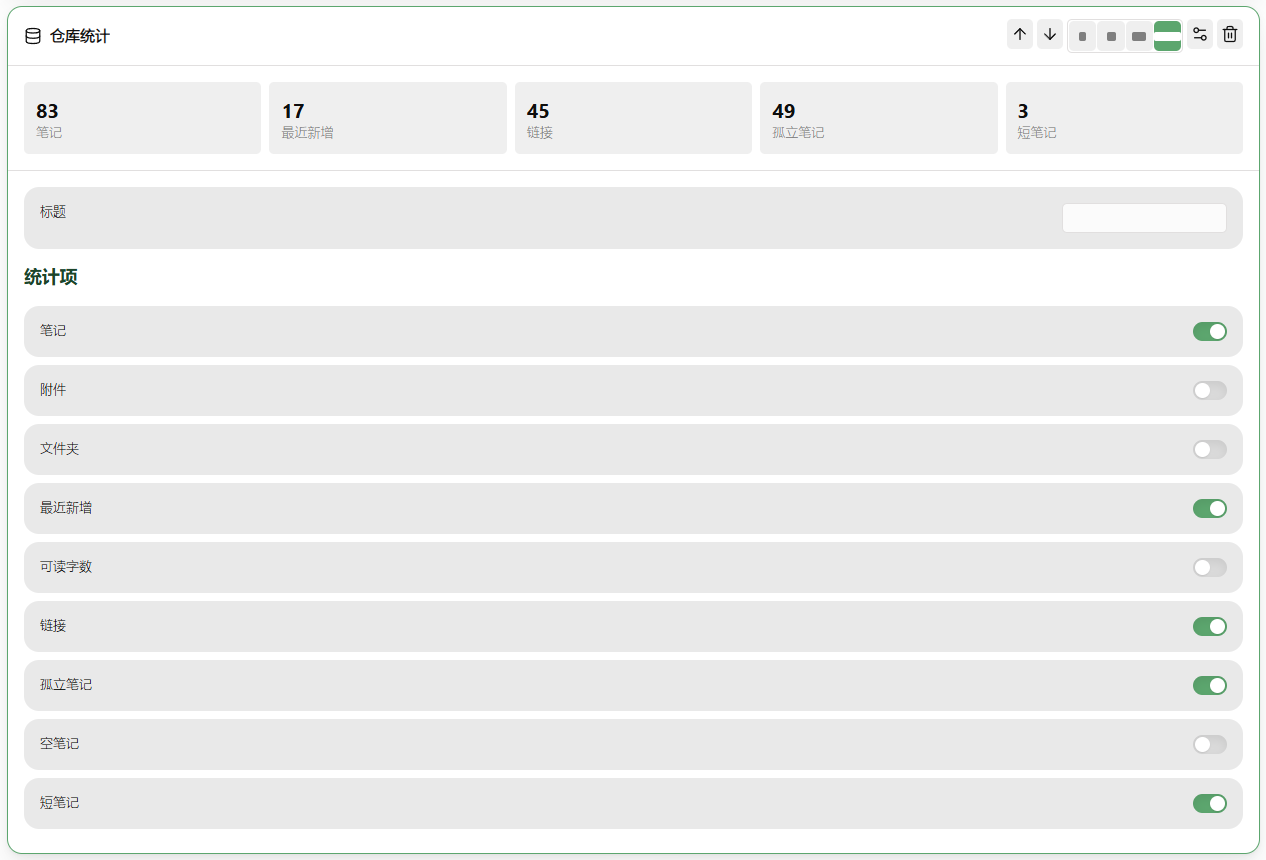
Eleven metrics to pick from: total notes, recently added, readable words, attachments, folders, links, orphans, broken links, orphan attachments, empty notes, and short notes. Click any number to open the matching note list with keyword search (capped at 500 entries). The threshold for empty / short notes is a setting.
“Broken links” counts notes containing unresolved wiki / Markdown links (pointing at notes that don’t exist), from the body and frontmatter properties alike; example links inside code blocks and inline code are not counted. Click to drill down into those notes.
“Orphan attachments” counts non-note files not referenced by any Markdown note; references follow the same rules as broken links (body wiki / Markdown links, embeds ![[…]], and frontmatter properties). Usage inside canvas, Base, and other non-note files does not count. Click to drill down into those files.
Today’s tasks
Scans daily notes in the journal folder and groups tasks into today / overdue / recently completed; click to jump to the exact line. Understands standard Markdown checkboxes plus Tasks-compatible emoji dates — see the guide. Read-only.
| Parameter | Default | Description |
|---|---|---|
Show recently completed showCompleted | on | Turn off to hide the “recently completed” section |
Recently updated
Your most recently modified notes (newest first), filterable by folder / tag / property, one click away.
| Parameter | Default | Description |
|---|---|---|
Limit limit | 8 | How many entries to show |
Folder folder | empty | Restrict to one or more folders: comma-separated, nested paths like 000 Inbox/Clippings work, and a match includes its subfolders |
Tag tag | empty | Restrict to a tag |
Property frontmatterKey | empty | Filter by a frontmatter property |
Value frontmatterValue | empty | Used together with the property name |
Command buttons
Turns any Obsidian command (built-in or from other plugins) into a dashboard button; add as many as you like in edit mode, and optionally require a confirmation click for dangerous ones.
Quick create
Creates notes from Templater templates in one click. Requires Templater. Each button can configure:
- Label: the text on the button;
- Template file: path to the Templater template;
- Folder (optional): where the new note lands;
- Filename pattern (optional): supports the
{{date:format}}placeholder, defaulting to{{date:YYYY-MM-DD}}; can also be combined with a title.
Queries & embeds
Dataview query
Renders a Dataview query result inside the dashboard. Supports plain queries (TABLE / LIST / TASK / CALENDAR, …) and dataviewjs blocks (JS queries must be enabled in Dataview’s settings).
| Parameter | Default | Description |
|---|---|---|
Query code code | empty | The query body (without ``` fences) |
Source note source | empty | The note providing query context; falls back to the active file |
Base view
Embeds an Obsidian Bases view (requires Obsidian 1.9+). Its only parameter is the path to a .base file. It renders as a preview with an Open button that jumps to the full view.
Recently created
Lists notes created in the last N days; click to open. The filters are the same as Recently updated (folder / tag / property / value; folders accept comma-separated entries and nested paths), plus:
| Parameter | Default | Description |
|---|---|---|
Days days | 30 | How far back to look |
Limit limit | 20 | How many entries to show |
Excerpts & timeline
Random quote
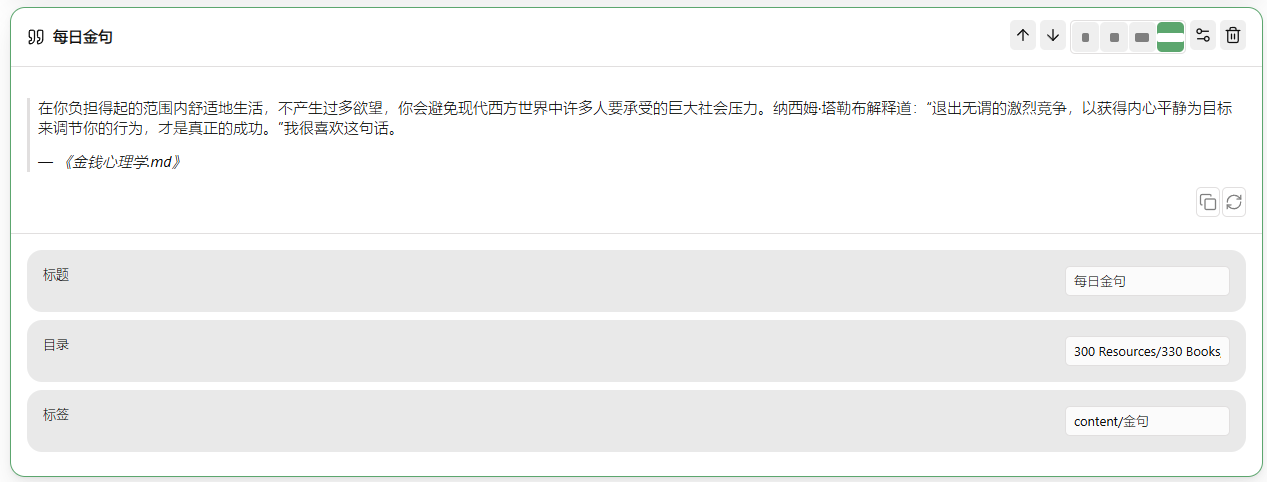
Shows a random excerpt from the notes you point it at, with copy and refresh buttons — the copied format is “quote, blank line, — source”. Source notes are expected to be named like 《Book Title》; the source line shows the book title only (no .md extension). Inline Markdown in quotes is rendered (bold, ==highlight==, …); candidate notes are collected by walking only the configured folder’s subtree, matching any of the given tags.
| Parameter | Default | Description |
|---|---|---|
Folder folder | empty | Folder holding your excerpt notes |
Tag tag | empty | Tag that marks excerpt notes; separate multiple tags with commas — any match counts |
Year timeline
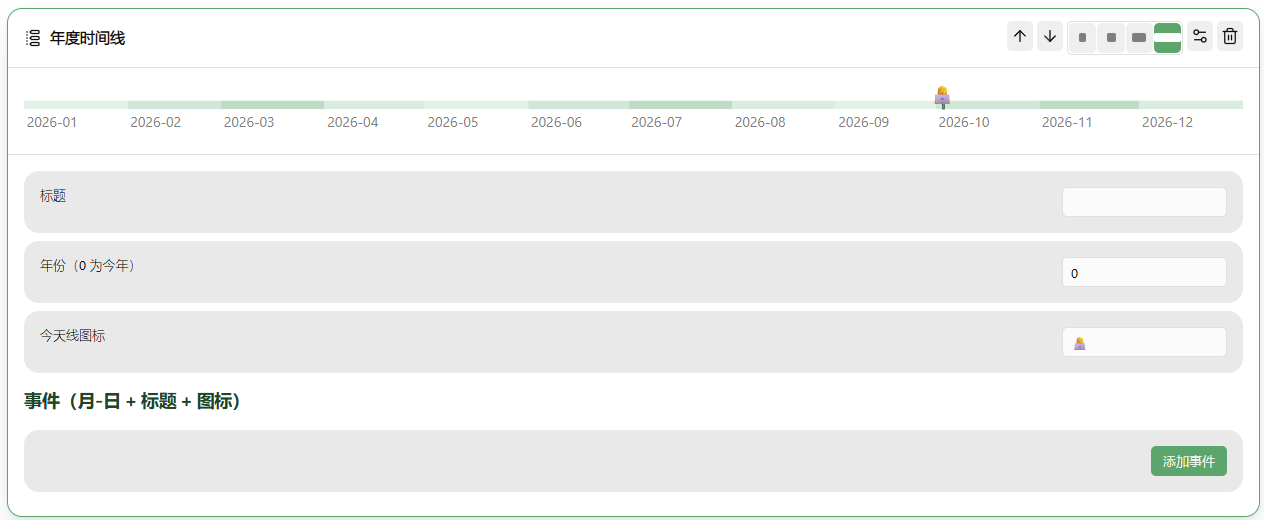
A full-year SVG axis: the 12 months are laid out proportionally to their real lengths, today carries an icon marker, and important dates can carry flags.
| Parameter | Default | Description |
|---|---|---|
Year year | 0 (this year) | Which year to show |
Today icon todayIcon | 👩💻 | The emoji marking “today” |
Events events | empty | A list where each entry has a date (month-day, e.g. 10-1), a title, and an icon (default 🚩) |
Charts
The three chart components all rely on plugin-recorded snapshots; the part from before installation is estimated from file creation times, drawn in a distinct style, and can be hidden in settings.
Daily word change
A bar chart of the net daily change in your vault’s total word count over the last 30 days — bars up for words written, down for words removed. Hover for exact numbers.
Writing heatmap
A GitHub-contribution-style heatmap where color depth encodes daily activity. On mobile it automatically uses the square (quarter-width) layout — no need to narrow the tile manually.
| Parameter | Default | Description |
|---|---|---|
Metric metric | 字数 (words) | What the heat encodes: words or new notes |
Link stats chart
A trend line of the number of internal links (wiki and Markdown) in your vault.
| Parameter | Default | Description |
|---|---|---|
Range range | 365 | The window: 90 / 180 / 365 days |
Structure analysis
Counts note distribution across top-level folders so you can see where your content actually lives.
| Parameter | Default | Description |
|---|---|---|
Show note count showNotes | on | Show the note count per folder |
Show word count showWords | on | Show the total word count per folder |
Show subfolder count showSubfolders | off | Show how many subfolders each top-level folder has |
Custom script component
Security note
If you write a little JavaScript, a script component can render anything — charts, aggregations, custom HTML.
Getting started
- Turn on Allow custom scripts in settings;
- Click New script — the plugin drops a starter template into the script folder (
.obsidian/plugins/vault-dashboard/data/); - Edit the file, then back in the dashboard choose Add; the
script/<filename>component appears at the bottom of the list.
The contract
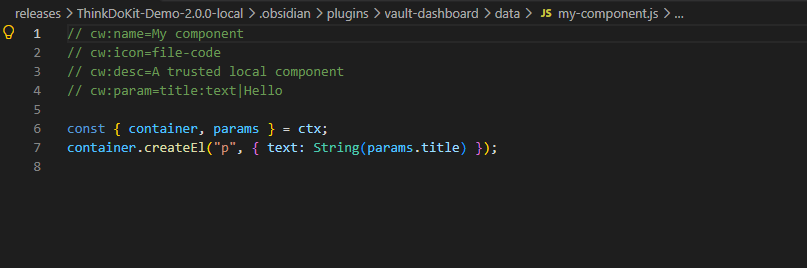
The script declares its metadata in header comments:
// cw:name=My component      // display name
// cw:icon=file-code         // icon (a Lucide icon name)
// cw:desc=A trusted local component   // description
// cw:param=title:text|Hello // parameter: key:type|default

const { container, params } = ctx;   // ctx provides the container and params
container.createEl("p", { text: String(params.title) });- Parameters declared via
cw:paramshow up in the edit-mode parameters panel; ctx.containeris the component’s render target (a standard HTMLElement) andctx.paramsholds the user’s values;- Scripts re-run on every render — save the file and refresh the dashboard to see your changes.