Guide
Quick capture
The ribbon icon or the command Open quick capture opens the form: pick a section → fill in → submit, and the content is written under that heading of the current period’s journal. Every section also has its own command (e.g. Quick capture: Week · Weekend review) — bind hotkeys or add them to the mobile toolbar for one-step access.
- Reopening the form prefills current values — topping up or correcting is easy;
- overwriting an existing value asks for confirmation (data, text, and paragraph sections);
- a paragraph section reopens as an editor: the existing content comes along and saving overwrites it.
Batch-fill the current note’s fields
The command Quick capture: all fields of the current note (also in the note’s ⋯ menu and the file context menu) scans the currently open note for every [field:: value] inline field and lays them out in one form, grouped by heading — fill a whole day’s check-ins, data, and reflections in a single window instead of section by section.
- Found anywhere on the line: fields embedded mid-sentence (like
[archive:: true]on a panel entry) are listed too, and multiple fields on one line are edited independently; - controls follow the type: when the heading matches a configured section (check-in / data / compare) the matching control appears (✔️/❌/clear segmented toggle, number input); unconfigured headings fall back to the current value (✔️/❌ → toggle, numeric → number input, anything else → text);
- only fields whose value changed are written, and the rest of the line (indentation, surrounding text) is preserved verbatim; an emptied value is saved as
[field::]; - if the note was modified by another plugin or another window while the form was open, the whole batch is refused with a retry notice — stale content never overwrites the fresh note;
- fields inside code blocks, frontmatter, and
%%…%%comments don’t count, and[[links]]are never mistaken for fields.
The six section types
A section is anchored to a heading in the journal; its type decides how capture works:
| Type | How it captures | Example |
|---|---|---|
| Check-in | a ✔️/❌ toggle per inline field; unchecked is not written | daily habits: medicine, meditation… |
| Data | a numeric value per inline field (with unit) | weight, exercise minutes, spending… |
| Text | one sentence per inline field | the four daily reflection questions |
| List | appends one line per item; line template configurable | - [ ] {{value}} for tasks |
| Paragraph | one long free-form entry per day | the weekend review |
| Compare | two paired numeric series per dimension, drawn as a radar chart in the summary | Wheel of Life: year-start targets vs year-end review |
The default daily config follows this layout: ### 每日打卡 (4 items), ### 数据记录 (5 items), ## ✍️ 今日小结与回顾 (4 questions), ## 👀 GTD任务看板 (list, template - [ ] {{value}}), ## 💡 灵感与思考 (list + timestamp). Weekly and monthly each preset one review text section; quarterly and annual preset none.
Compare sections and series markers
A compare section records two numeric series for the same dimensions under one heading — the classic use is the annual “Wheel of Life”: a target per dimension at the start of the year, a review score at the end. You configure one section:
- fields are the dimensions (base keys such as
PersonalGrowth,HealthFitness); - the section carries two series, each with a series marker (an emoji, 🎯 / 🏆 by default) and a series label for display (e.g. Targets, Review);
- the field keys actually written in the note are the base key + series marker:
### Wheel of Life
- [PersonalGrowth🎯:: 7]
- [HealthFitness🎯:: 6]
- …
- [PersonalGrowth🏆:: 8]
- [HealthFitness🏆:: 7]
Pairing happens automatically wherever the base keys match once the marker is stripped — add or remove a dimension in one place and the two columns never drift apart. The quick-capture form shows a two-column numeric grid (dimensions × series), and the comparison radar in the summary draws both series on one radar chart (week / month / quarter / year views read the matching period’s note).
The quick panel
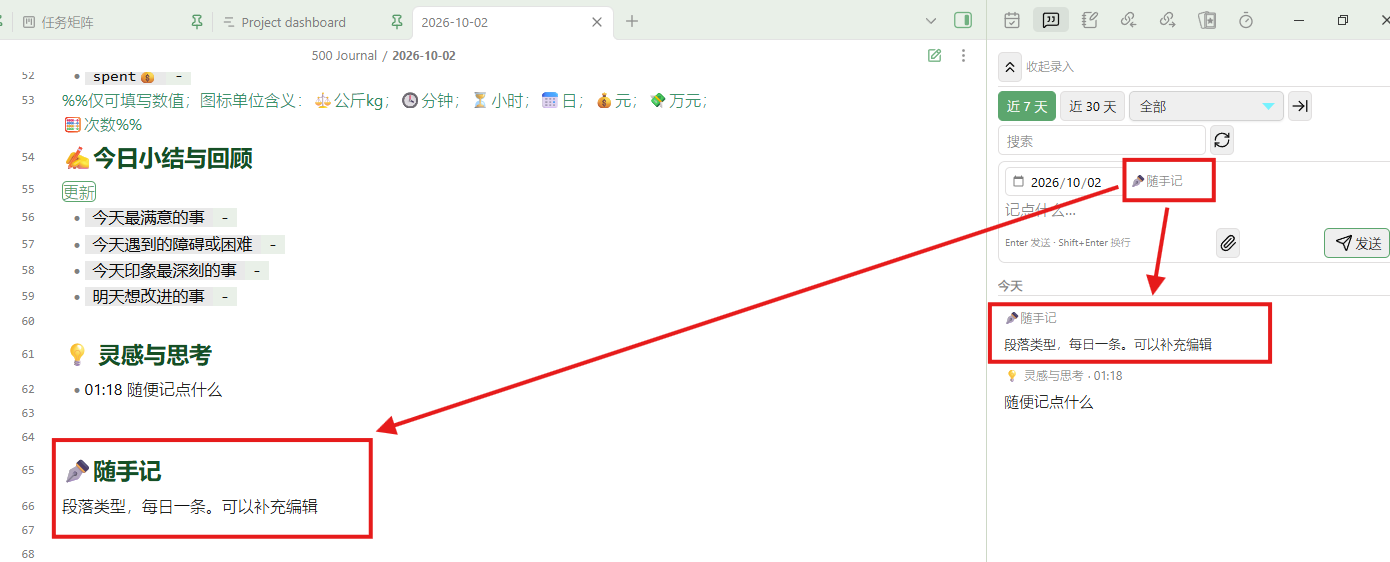
The command Open quick panel — a Thino-like content stream:
- a card-style input pinned at the top: pick a section and post — lists append per item, paragraphs hold one entry per day (reposting edits it);
- paragraph images: with a paragraph target, both the input row and the edit
dialog carry a paperclip button — pick an image, it is stored in your
Obsidian attachments location and
![[…]]lands at the cursor; - the section filter drives both the input and the stream: choose your ideas section and see only ideas;
- tasks: tap the status marker at the line start — both open ☐ and cancelled ✕ become completed ☑, completed returns to open (markers are configurable); every record carries edit / delete / jump-to-source / convert-to-task-list actions;
- search, optional auto timestamps; the stream refreshes automatically when journal files change;
- the top collapses (phone-friendly); show completed tasks and show cancelled tasks are persistent settings; non-task lines never enter the panel;
- the unfinished-task rollover button carries unfinished tasks from the most recent N days of journals (default 7, configurable) into today, written oldest-first when several journals are involved; duplicates are kept as written, and nothing older than the window is searched (the unfinished marker is configurable; default space +
>).
Multi-period journals
Settings are tabbed by day / week / month / quarter / year, each independently configured:
| Period | Default folder | Filename format |
|---|---|---|
| Day | 500 Journal/540 Daily | YYYY-MM-DD |
| Week | 500 Journal/530 Weekly | YYYY-[W]ww (ISO week) |
| Month | 500 Journal/520 Monthly | YYYY-MM |
| Quarter | 500 Journal/515 Quarterly | YYYY-[Q]Q |
| Year | 500 Journal/510 Annual | YYYY |
Weekly-to-yearly reviews are simply text sections of the matching period (preset from the current template fields) — fill them via that section’s quick-capture command. The summary’s top capture strip only shows the sections of the period being viewed; daily sections live in the summary’s Daily capture card.
Template detection
Already have your own journal template? Point settings at the template note, click once, and the section config for the period rebuilds from the template’s headings and inline fields (templates for all five periods are recognized):
- display names default to the field keys with emoji stripped, and stay editable;
- when every field key is a base key plus the same two emoji suffixes, the section is detected as compare (the two emoji become the series markers; labels default to the markers and stay editable);
- folders are scanned recursively (templates in subfolders are found);
- the filename format follows the period and is customizable.
Auto-created notes
What if the target journal doesn’t exist at submit time? The plugin creates it from the section config — a scaffold of frontmatter + headings + empty-value field lines (no query blocks, no buttons) — and then writes as usual. Capture is never blocked by a missing note.