Guide
Guide
Opening the board
- the ribbon icon in the left sidebar, or
- the command palette (
Ctrl/Cmd + P) →Open project dashboard.
The board opens in a new tab: the grouping panel on the left and two tabs — Gantt / Mermaid — on the right. Three toolbar switches worth knowing first:
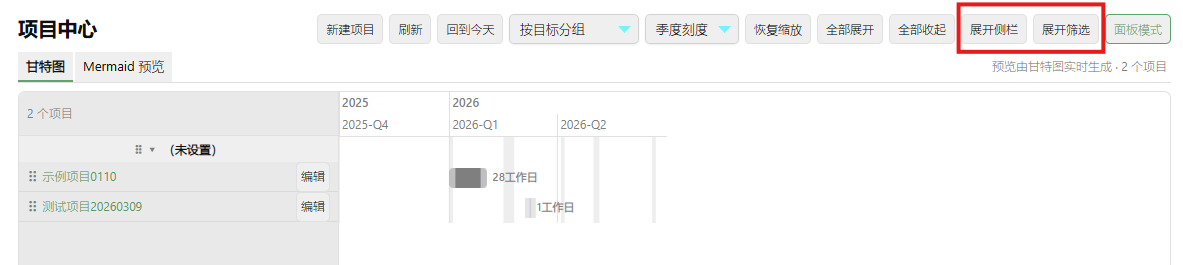
- Collapse sidebar — give the Gantt chart the full width (the split is drag-resizable and remembered);
- Collapse filters — fold the whole filter bar away (expanded by default);
- Panel mode — the panel takes the full page, for a pure board experience.
Grouping panel
- Group by folder (default) / status / area and more; sorting defaults to due date ascending;
- Cards show status, dates, progress, and priority; click a card to open the edit dialog (saved back to frontmatter);
- Cards support drag-to-reorder, and the manual order is remembered (automatic sorting takes precedence when active);
- Long-term projects (
long-term: true) pin to the top, outside grouping and date filters; - Each group lists related notes from the project folder (up to 5; the cap is a setting).
Filters
The filter bar offers status presets, area (single-select), year, and more:
- the default status preset hides completed / cancelled / archived — switch presets to see everything or only active work;
- the area filter is a direct single select fed by the
areafield.
Whenever projects are missing from the chart, the top of the view states the reason and count (missing dates / long-term) — no guessing required.
Gantt chart
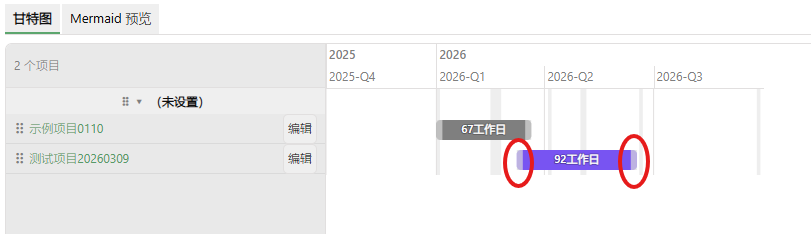
- Drag to reschedule: drag a bar to move it, drag its ends to resize — releasing writes the new dates back to the note’s
start_date/due_date; - Zoom: month / week / day levels, month by default;
- Today line: a marker for today, with a one-click back to today;
- the chart exports to SVG / JPG images.
Creating and editing projects
- Create: open the creation form from the command palette or the board — fill in name, status, dates, area, and a proper project note is generated;
- optionally start from a new-project template (a setting);
- quickly created projects land under the quick-project folder with companion materials in its
materials/subfolder (both names configurable);
- Edit: click a card in the panel — the dialog mirrors the field reference and saves back to frontmatter.
Mermaid export
The Mermaid tab exports the current chart as a Mermaid gantt block:
- when writing into a target note, the block is wrapped in
%% gantt-builder:start %%/%% gantt-builder:end %%markers — re-exporting only replaces what’s between them and never touches the rest of the note; - options: title (default “项目进度甘特图”), today marker, exclude weekends, exclude / include specific dates;
- holiday scheduling: maintain per-year holiday tables in settings and exclude holidays from the schedule at export time;
- statuses map to Mermaid’s
done / active / crit; projects without dates or grouping info fall into a “默认项目” section; - limitation: Mermaid does not support per-task colors (a Mermaid limitation, noted in the UI).